Exam - Linux virtual machine guide
Using Linux virtual machine
Some exams use Ubuntu Linux through Citrix Workspace. Login instructions
Login instructions:
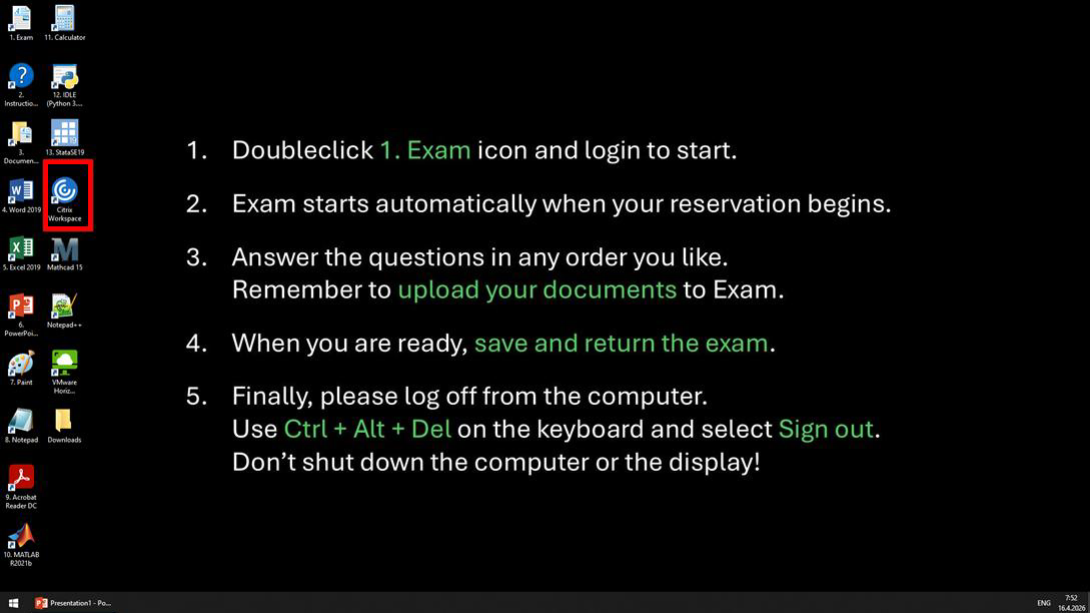
1. Double-click the Citrix Workspace icon.
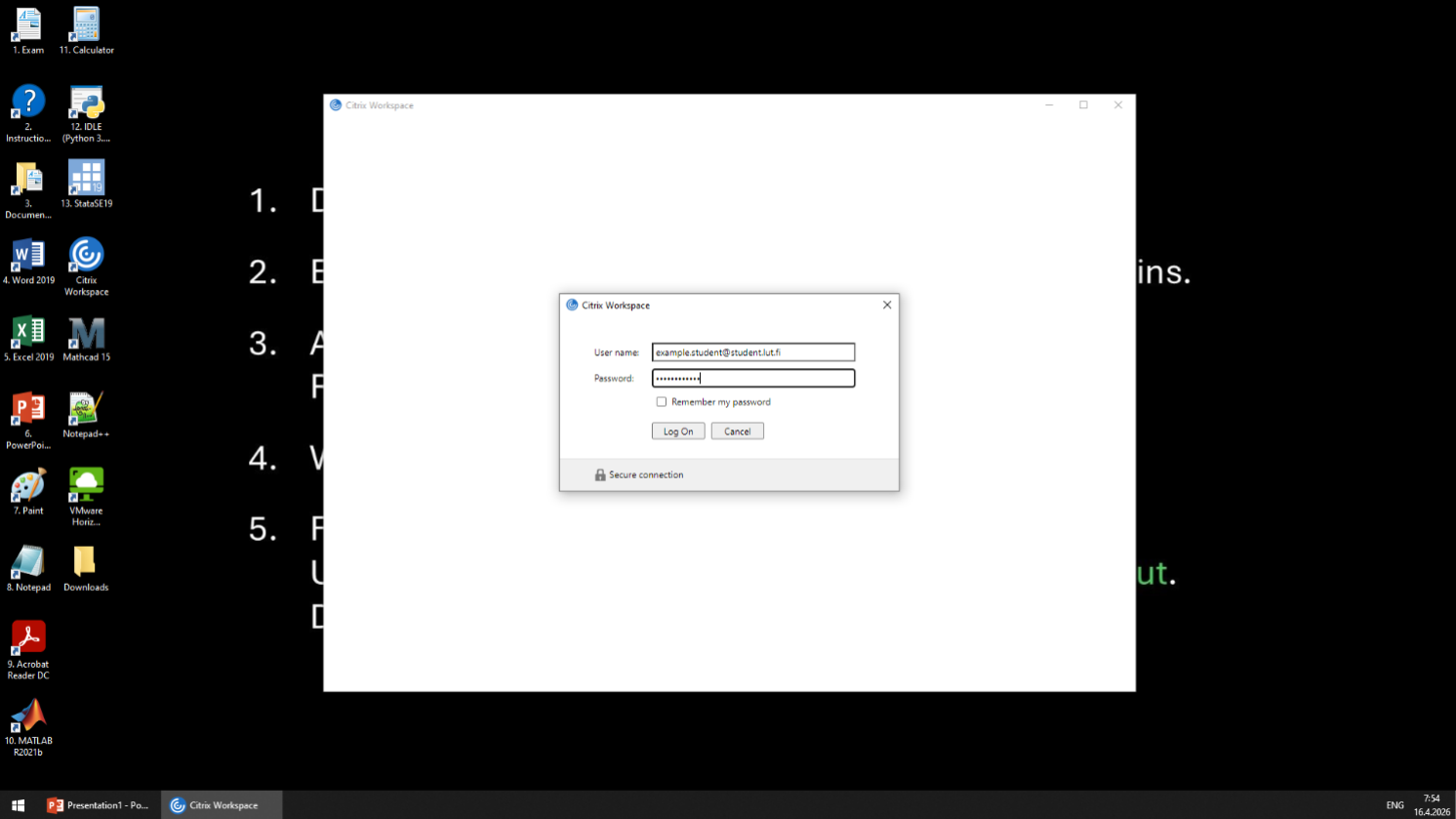
2. Login with your LUT/LAB user credentials (use your student email).
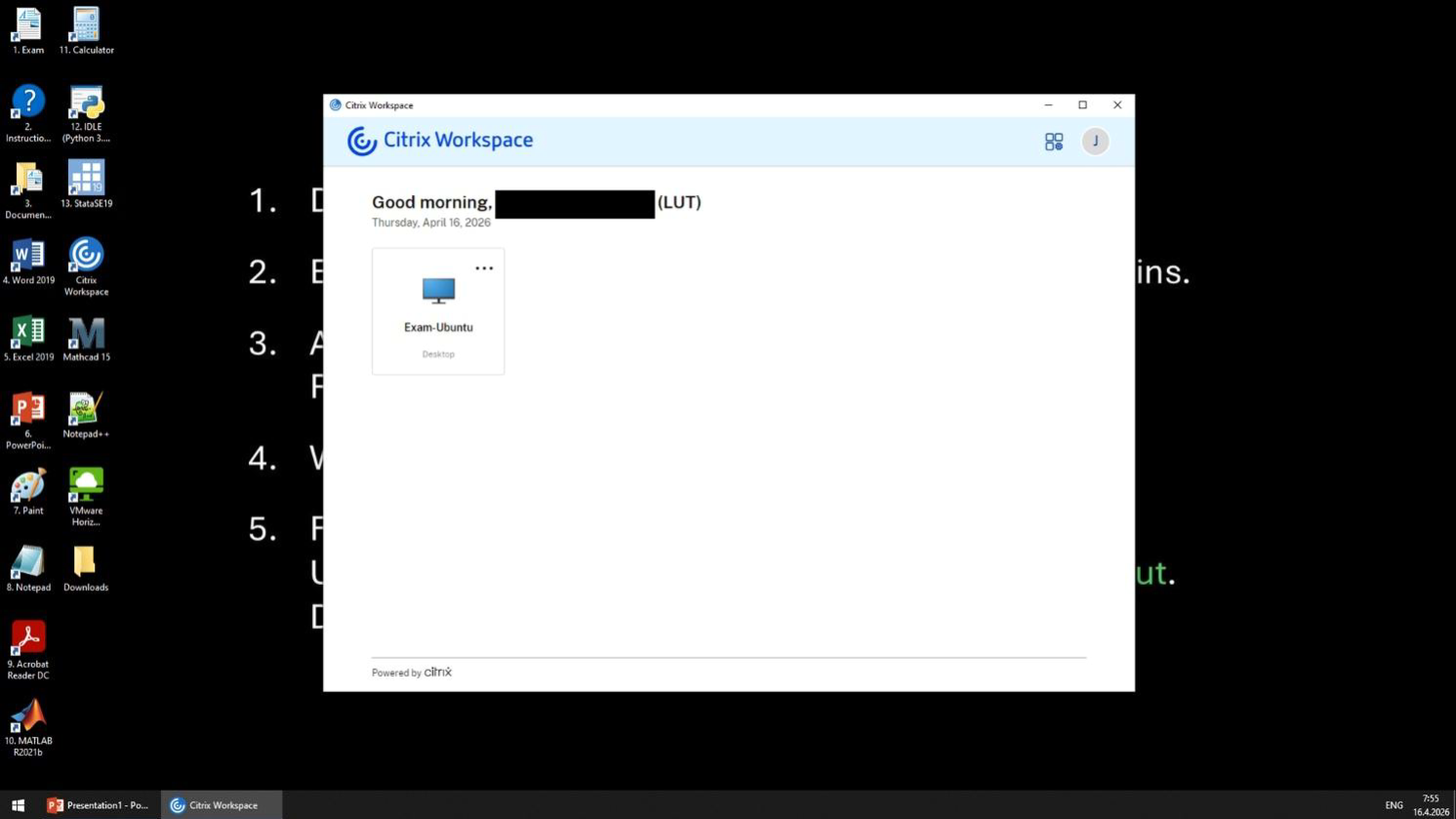
3. Click Exam-Ubuntu to log in to Linux
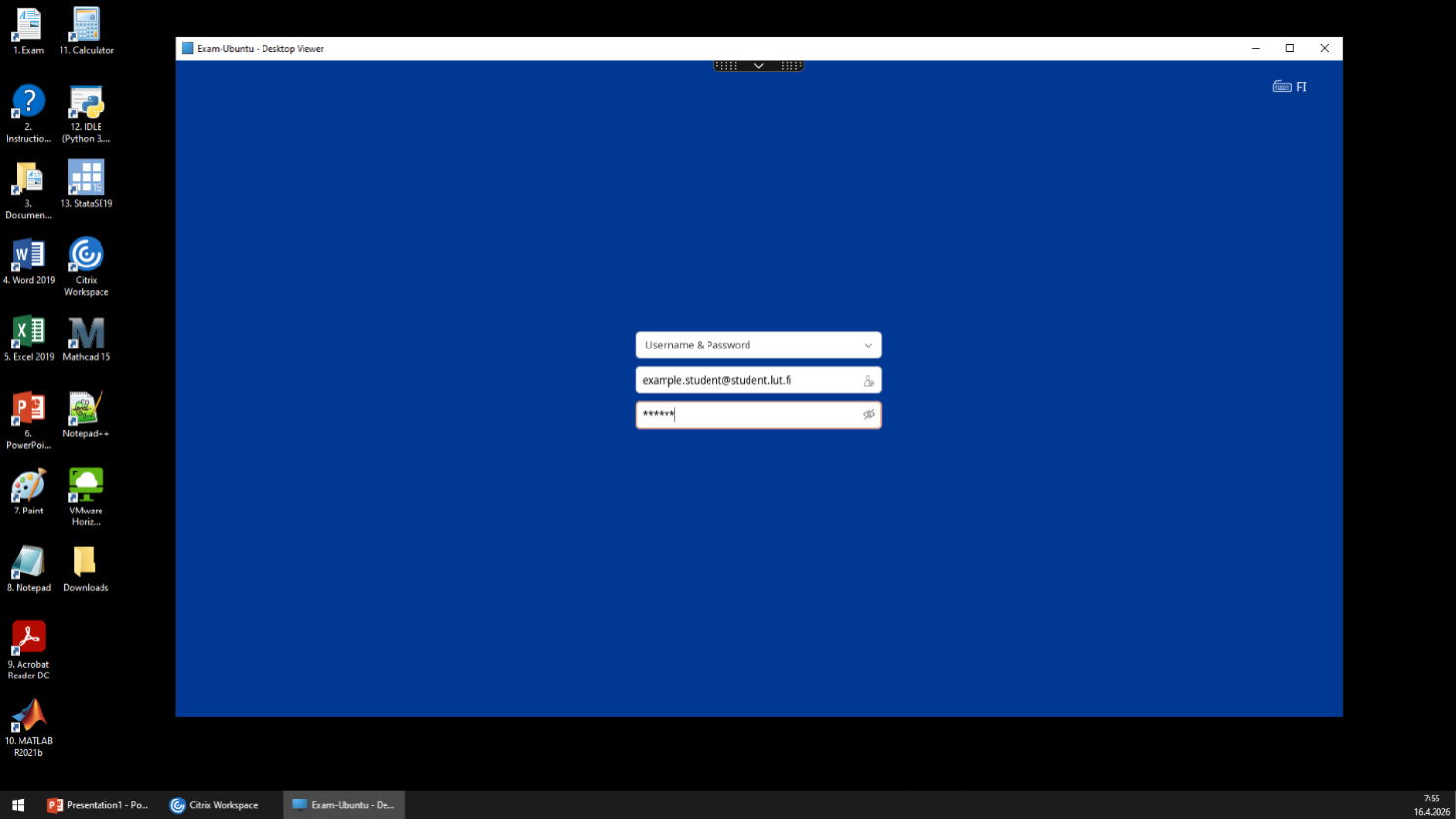
4. Use your LUT/LAB user credentials (use your student email) and then press Enter.
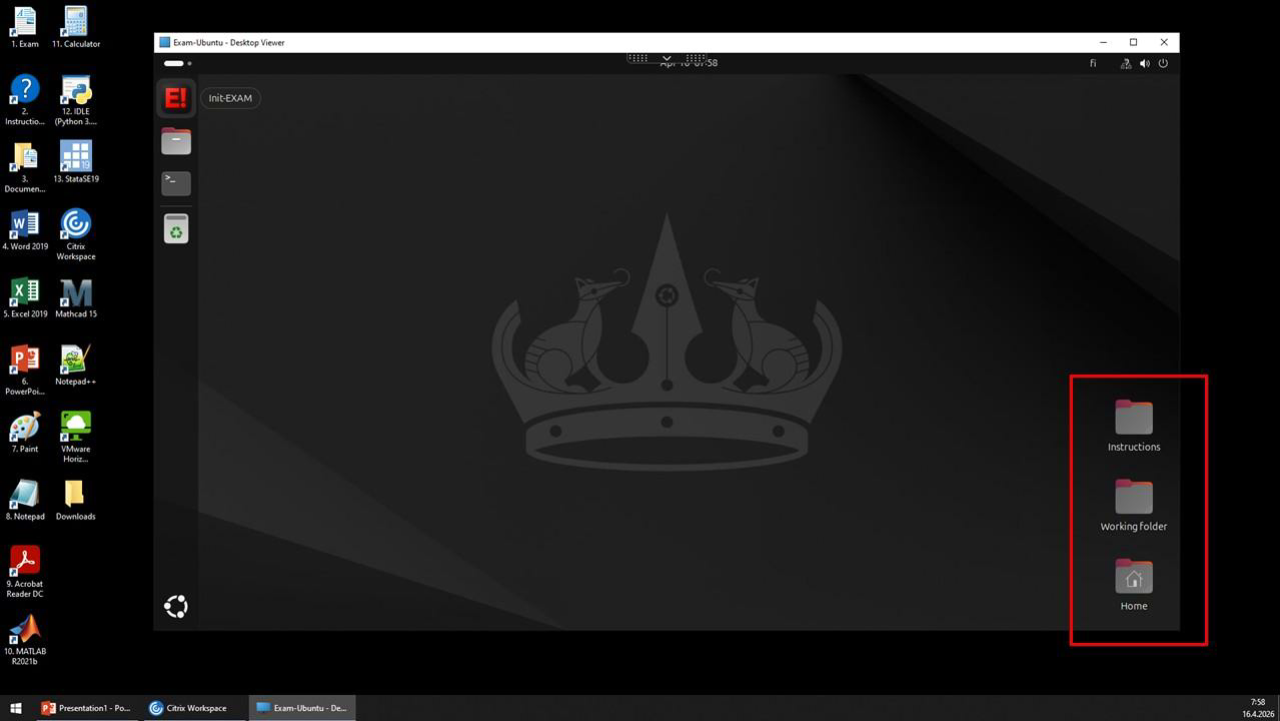
5. In the Linux desktop, click the "E!" button on the left-hand side to connect File services to Windows.
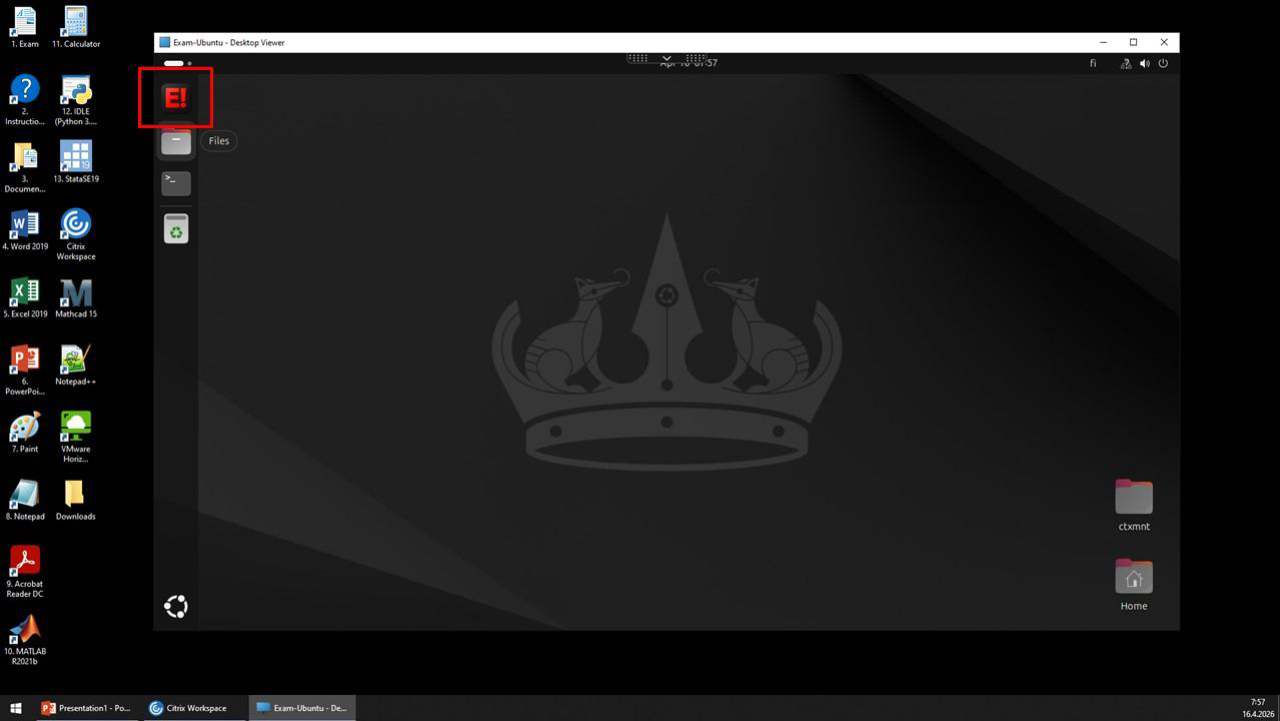
6. You can then see the "Instructions" and "Working folder" icons on the right-hand side of the window. You will then be able to access files you saved on Windows desktop in Linux and vice versa.