Using the new study plan mode:
If the course is removed and replaced by a direct replacement course, then the replacement will be applied for in PSP through the course brochure:
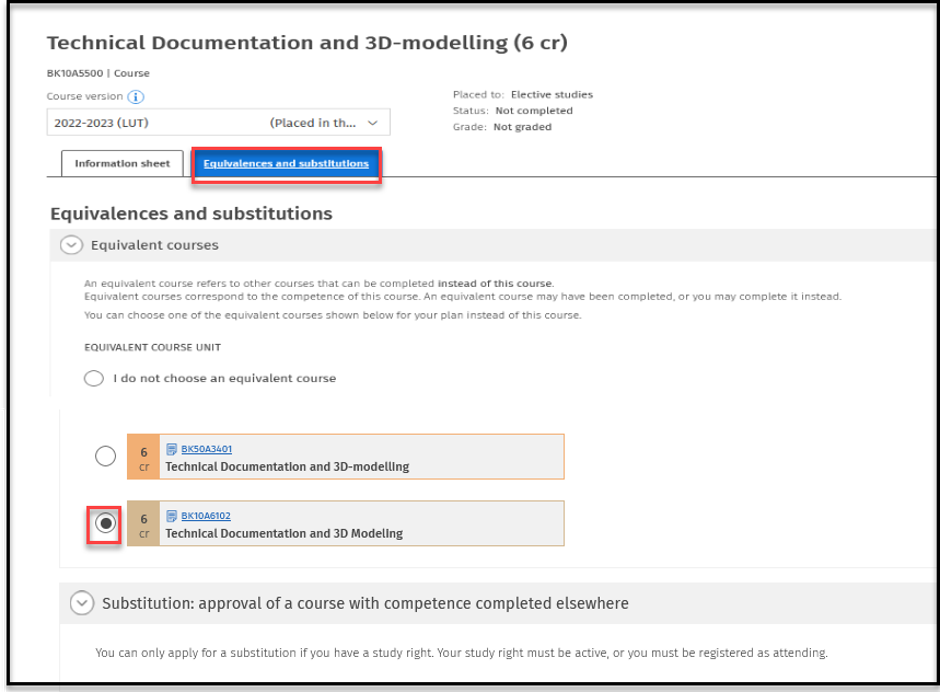
- Click on the course code to open the brochure
- Switch to the latest version, and enable the version at the top of the page if there are no substitutions on the Equivalences and substitutions tab
- Click the Equivalences and substitutions tab
- Under the Equivalences and substitutions, select the replacement course (s)
The replaced course is displayed in PSP  You have selected this course to replace another course.
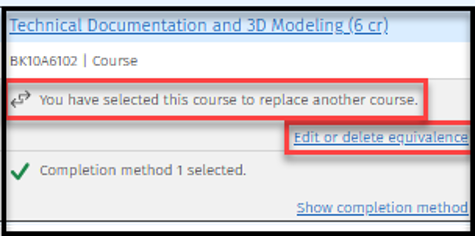
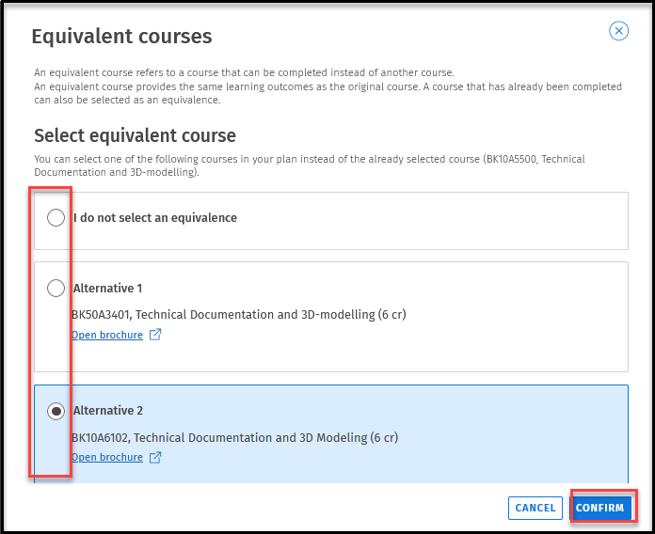
Removing a choice of equivalent course by pressing Edit or delete equivalence
in the now window can the selection be done, I do not select an equivalence and Confirm
Using old personal study plan:
If the course is removed and replaced by a direct replacement course, then the replacement will be applied for in PSP through the course brochure:
- Click on the course code to open the brochure
- Switch to the latest version, and enable the version at the top of the page if there are no substitutions on the Equivalences and substitutions tab
- Click the Equivalences and substitutions tab
- Under the Equivalences and substitutions, select the replacement course (s)

The replaced course is displayed in PSP as follows:

Note! If there is no substitution to the version you have selected and you change the version to a newer one and the selection is not allowed > click Switch to this version in the upper bar > close the brochure > goes back to the personal plan > select the brochure again > the selection becomes possible.
Removing a choice of equivalent course. Press the double arrow, and a selection box open, showing Edit at the bottom.

Pressing the Edit box at the bottom, a new window open, choose Equivalences and substitutions tab, chose I do not choose an equivalent course, and close the window in the upper right corner.


