
Creating a study plan - Sisu
After logging in, Select Structure of studies from the front page.

In your use, is the new study plan, moving the Pillar selection you can change between the new and old version of the personal study plan (PSP).
In the structure of studies –view, click tree dots to the right to create a new study plan. To select an existing study plan, click the arrow next to the plan’s name. 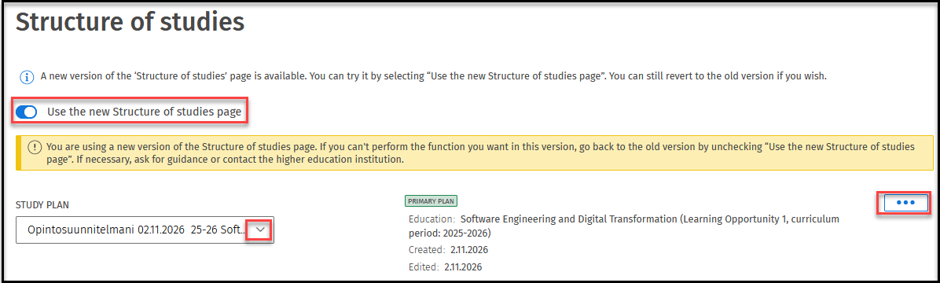
In the window titled Create a new study plan you can choose educations to which you have a study right in the tab My educations. In the tab, All educations you can search for any education. After you have selected an education and the curriculum period, you can create the plan by clicking Create a plan.

If you select an education to which you do not have a study right or you have not registered for the current semester, a warning message will be displayed under the plan’s name.

From the dropdown list found under the three dots button you can find the option to edit the plan’s name or delete the plan. You can also set the plan as the primary plan. You can ask for guidance only on your primary plan. On your primary plan, a green text will be displayed next to, or under the plan’s name. You can not delete the only and the primary plan.
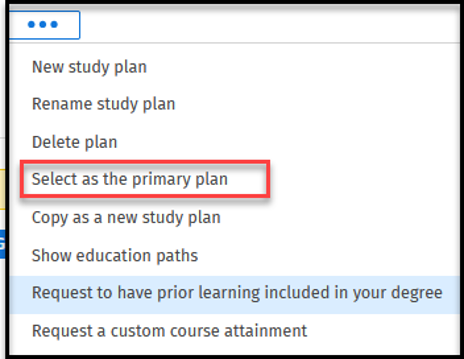

An education can only have one primary plan at once. If you set a plan as the primary one, other plans will receive secondary status.
Under the name of the plan are mentioned the education and learning opportunity to which the plan is done as well as the curriculum period selected and modification and creation dates of the plan.